OPPO ColorOS 17 Beta: Features, Eligible Phones, Installation Guide, and What to Know
Introduction
The OPPO ColorOS 17 beta is an important development for OPPO smartphone users who want to explore the next generation of the company’s Android-based software. Beta testing gives eligible users an opportunity to try new features before they become available through a wider, stable software release.
OPPO officially unveiled ColorOS 17 globally on October 13, 2026. The new operating system introduces a refreshed interface, improvements to system responsiveness, and expanded AI-powered tools. OPPO says the software will debut on the upcoming Find X10 series, with additional devices receiving the update progressively.
However, the beta program and the stable release are not the same. Access depends on your smartphone model, region, current software version, and the availability of an official testing program.
In this guide, we explain what the OPPO ColorOS 17 beta is, what features to expect, how to check eligibility, how to apply safely, and what users should verify before installing it.
What Is OPPO ColorOS 17 Beta?
ColorOS is OPPO’s customized Android operating system, designed to provide its own interface, system tools, privacy controls, and software features.
The beta version is a pre-release build intended for testing. It allows selected users to try software changes and helps the manufacturer identify bugs and compatibility problems before a broader rollout.
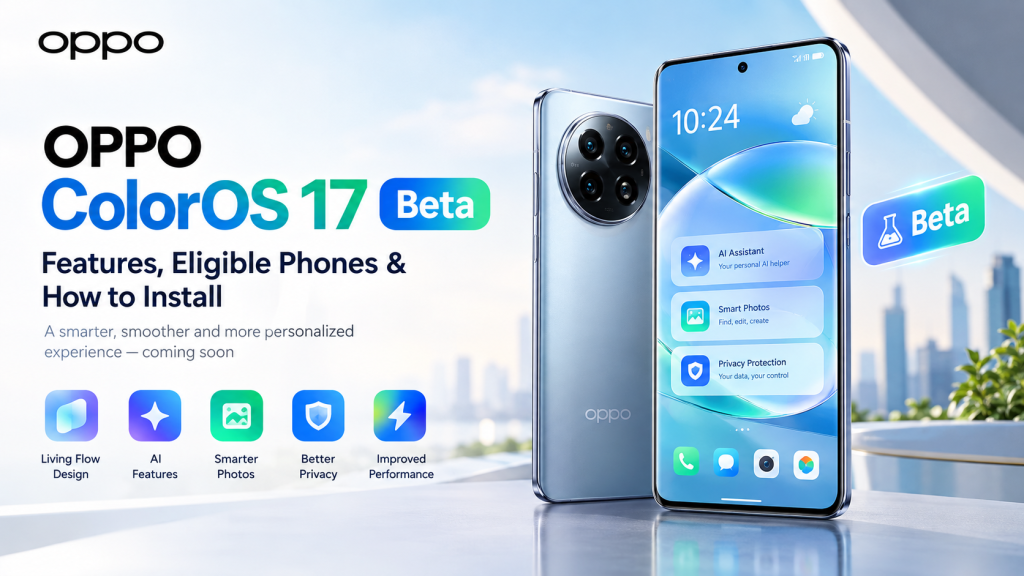
ColorOS 17 is the latest generation of OPPO’s software platform announced in October 2026. Its headline changes include Living Flow Design, updated performance architecture, and new AI-assisted features.
Beta Version vs. Stable Version
| Feature | Beta version | Stable version |
|---|---|---|
| Main purpose | Testing new software | Everyday use |
| Availability | Limited by model and region | Gradual wider rollout |
| Bugs | Possible | Generally more polished |
| App compatibility | Some problems may occur | Usually more reliable |
| Updates | Testing builds and fixes | Regular public software updates |
Important: A beta invitation does not guarantee that every advertised feature will work on your device. Some features may be limited by hardware, country, language, or software build.
Key Features of OPPO ColorOS 17 Beta
OPPO has announced several improvements for ColorOS 17. Although the exact experience can differ between beta and stable builds, the following features are part of OPPO’s official ColorOS 17 announcement.

1. Living Flow Design
The redesigned interface focuses on translucent visual effects, smoother transitions, and responsive animations. Buttons and other interface elements provide more dynamic visual feedback.
Practical example: Switching between apps or opening a menu should feel more visually continuous.

2. AI Mind Pilot
AI Mind Pilot introduces agent-style assistance designed to organize information, work with files and photos, and help complete multistep tasks.
Practical example: You could ask an available AI assistant to organize selected travel photos or help create a travel itinerary from saved information.

3. AI Photo Agent
This feature is designed to simplify photo editing using natural-language instructions, suggested adjustments, and reference-image style matching.
Practical example: You may be able to describe the lighting or color style you want instead of adjusting every editing control manually.

4. AI Mind Space
AI Mind Space helps collect and organize information into searchable personal memories and related collections.
Practical example: Save useful notes, documents, and supported links so you can find related information later.

5. OSee visual AI
OSee is designed to connect what the camera sees with relevant AI tools, including object recognition, information lookup, scanning, and translation.
Practical example: Point your camera at an unfamiliar object and use the supported visual tools to learn more about it.

6. Performance and multitasking improvements
OPPO has introduced a refreshed rendering architecture and an upgraded Laminar Flow Engine to improve interface responsiveness and background resource management.
Practical example: Switching between a browser, messaging app, and photo gallery may become more consistent, depending on your device and workload.
Feature note: AI availability, supported languages, hardware requirements, and usage limits vary by device and region. These are announced capabilities, not a guarantee that every feature is available in every beta build.
OPPO ColorOS 17 Beta: Eligible Phones and Availability
There is no single universal beta list that applies to every country. OPPO runs software testing by device and region, and the requirements can differ between recruitment rounds.
Phones included in the October 2026 beta recruitment
OPPO’s community announcement for the October open-beta program listed the following devices for selected markets.
| OPPO smartphone | Reported beta availability |
|---|---|
| Find X9 Ultra | India, Indonesia, Malaysia |
| Find X9 Pro | India, Indonesia, Malaysia |
| Find X9s | India, Indonesia, Malaysia |
| Find X9 | India, Indonesia, Malaysia |
| Find X8 Pro | India, Indonesia, Malaysia |
| Find X8 | India, Indonesia, Malaysia |
| Reno15 Pro 5G | India, Malaysia |
| Reno15 Pro Mini | India, Malaysia |
Important: These are reported October recruitment details, not a guarantee that applications remain open on October 25, 2026. Check the relevant official community thread for the current application window and required firmware.
What about other OPPO phones?
Other models may receive ColorOS 17 through subsequent beta rounds or the stable rollout. OPPO’s official global rollout schedule provides a broader guide to planned availability, but the schedule is subject to change.
Do not assume that a phone is eligible simply because it belongs to the Find, Reno, F, K, or A series. Always check the exact model name and regional variant.
How to Download and Install OPPO ColorOS 17 Beta
If your phone is eligible and OPPO is accepting applications in your region, follow these steps.

Step 1: Check your current software version
Open Settings → About device and check your phone model and installed ColorOS version. Install any prerequisite update required by the official beta notice.

Step 2: Back up your important data
Save your photos, documents, contacts, and other important files. Use a reliable backup method and verify that the backup is accessible before continuing.

Step 3: Find the official Beta Program
If the program is available for your device, open Settings → About device, tap the software-version area, and look for the menu in the upper-right corner. Depending on your software version, the option may be labelled Beta Program or Trial Version.

Step 4: Submit your application
Read the official requirements and submit the application if the correct ColorOS 17 beta is listed. Some programs require approval before the update becomes available.

Step 5: Download the update if approved
Use a reliable Wi-Fi connection, keep the battery sufficiently charged, and follow the on-screen instructions. Allow the phone to finish installation without interrupting the process.

Step 6: Check the installation
Once the phone restarts, revisit About device to verify the installed version. Test essential apps and check for additional updates or known issues.
The menu labels and application process can vary. Follow the instructions published for your specific device rather than relying on a generic installation tutorial.
What if the Beta Program option is missing?
Try these checks:
- Confirm that your exact model and regional variant are eligible.
- Check whether the application window is still open.
- Install any required official firmware update.
- Restart the phone and check again.
- Consult OPPO’s official community or local support channel.
Do not download unofficial firmware packages or force-install a build intended for another model.
Risks to Consider Before Installing the Beta
The OPPO ColorOS 17 beta may be exciting for technology enthusiasts, but early software is not always suitable for everyday use.
- App compatibility: Some banking, work, or third-party apps may not function correctly.
- Battery and temperature: Background optimization after an update may temporarily increase battery consumption or device temperature.
- Performance issues: Lag, crashes, or unexpected behavior may occur.
- Data loss: Installation problems or incompatibilities can put personal data at risk.
- Rollback difficulties: Returning to an earlier version may require a specific rollback package and can erase data.
OPPO’s beta notices explicitly warn users about instability, possible app incompatibility, and the need to back up important data.
Practical recommendation: If your smartphone is your only device for essential communication, school, work, or other daily tasks, waiting for the stable release is generally the safer option.
OPPO ColorOS 17 Beta vs. Stable Release
The beta is intended for testing, while the stable release is designed for wider everyday use after the relevant software has been prepared for public distribution.
| Question | Beta | Stable release |
|---|---|---|
| Can I try new features early? | Yes, if eligible | When the features roll out |
| Is it suitable for everyone? | No | Generally more suitable |
| Can I encounter bugs? | Yes | Bugs can still occur, but testing is more mature |
| Is it available for every model? | No | No; device eligibility still applies |
| Should I back up my data? | Absolutely | Recommended before major updates |
A stable release does not necessarily bring every feature to every device. Hardware capabilities, regional software, and local availability can affect the final experience.
How to Check the Latest ColorOS 17 News
For reliable information, start with OPPO’s official resources rather than unverified social media posts.
- Official ColorOS 17 website: Explore ColorOS 17 features and rollout information.
- OPPO Global newsroom: Read the official ColorOS 17 announcement.
- OPPO Community: Check beta recruitment announcements and device-specific instructions.
Check the date of each announcement because beta enrollment periods can close, and rollout schedules can change.
Frequently Asked Questions (FAQs)
1. What is OPPO ColorOS 17 beta?
It is a pre-release version of OPPO’s ColorOS 17 software that eligible users can test before or alongside the wider rollout, depending on the program. Beta builds may contain bugs or compatibility issues.
2. Is OPPO ColorOS 17 officially announced?
Yes. OPPO officially unveiled ColorOS 17 globally on October 13, 2026. The company announced a progressive rollout beginning with the upcoming Find X10 series.
OPPO Global
3. Which OPPO phones can get ColorOS 17 beta?
The October open-beta recruitment included selected Find X9, Find X8, and Reno15 models in specified markets. Eligibility depends on the exact model, region, firmware version, and active recruitment window.
OPPO Global Community
4. How can I install OPPO ColorOS 17 beta?
Check your phone’s software version, back up your data, and look for the official Beta Program option in Settings if your device is eligible. Apply through OPPO’s official process and install the update only after it becomes available to you.
5. Is ColorOS 17 beta available globally?
ColorOS 17 has been announced for a global rollout, but beta recruitment is not necessarily global. The availability of testing builds varies by country and device.
6. Will ColorOS 17 improve battery life?
OPPO has announced performance and efficiency improvements, but actual battery life depends on the phone, software build, usage, network conditions, and battery health. A beta build may temporarily consume more power during optimization.
7. Can I return to ColorOS 16 after installing the beta?
Possibly, but the process depends on the device and beta build. A rollback may require an official package and can erase user data. Read the specific rollback instructions before joining the beta.
8. Is ColorOS 17 based on Android 17?
Yes. The ColorOS 17 beta is associated with Android 17. Users should confirm the Android version shown in their own device information because software availability depends on the installed build.
9. Will budget OPPO phones receive ColorOS 17?
Some non-flagship models may be included in OPPO’s broader rollout schedule. However, eligibility and timing must be checked against the official list for the specific model and region.
10. Should I install the beta or wait?
Choose the beta if you have an eligible device, understand the risks, and are comfortable reporting software problems. If reliability matters more than early access, waiting for the stable release is the better choice.
Conclusion
The OPPO ColorOS 17 beta gives eligible smartphone users an early opportunity to explore OPPO’s refreshed interface, AI-powered tools, and performance improvements. Its most notable announced features include Living Flow Design, AI Mind Pilot, AI Mind Space, AI Photo Agent, and OSee.
However, beta access is limited by device, region, and recruitment availability. Not every feature will be available on every phone, and early builds can introduce bugs, battery issues, or app incompatibility.
Before installing, verify your device’s eligibility through official OPPO channels, back up your important data, and read the program’s conditions carefully. If your phone is essential for everyday use, waiting for the stable update is usually the more practical decision.